



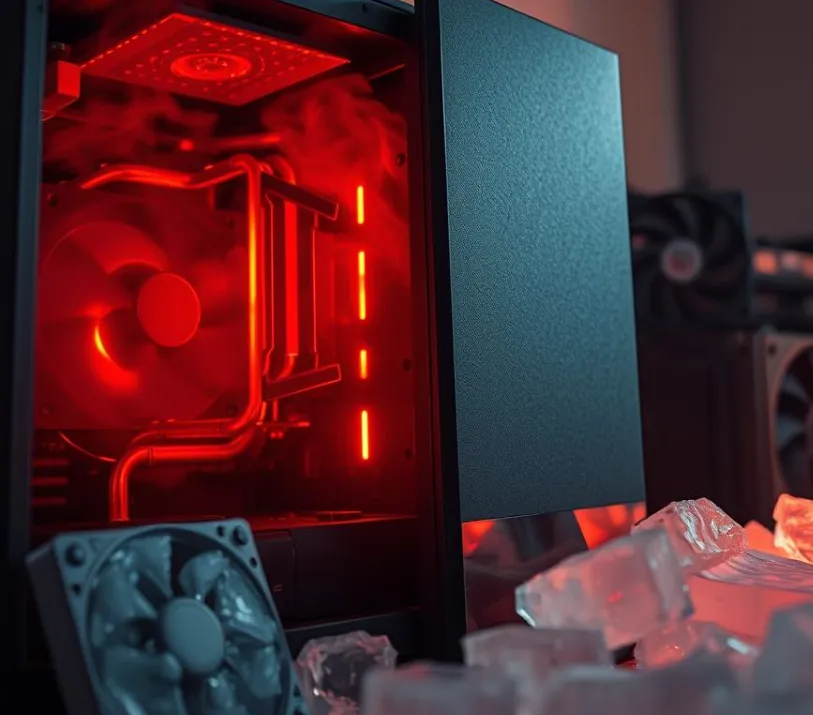
Nothing beats the excitement of gaming on a high-performance PC. However, with powerful components comes the challenge of managing the heat they generate. Overheating is a common issue that can turn thrilling gaming sessions into frustrating experiences. Not only does it hinder your performance, but it can also damage your PC’s components and shorten their lifespan.
For gamers, especially those in hot climates, managing heat is crucial. Overheating isn’t just about comfort—excessive temperatures can lead to throttling, crashes, and permanent hardware damage. In this post, we’ll cover practical solutions to combat PC overheating, helping you keep your system cool and running smoothly, no matter how demanding the game or application.
Why Overheating Happens and How to Spot It
Understanding why your PC overheats is the first step in combating it. Overheating can occur due to various factors, and knowing the signs can help you address the problem before it becomes critical.
Common Causes of PC Overheating:
- Room Temperature: A hot environment can make cooling more difficult, causing your PC to run hotter than usual.
- Poor Ventilation: Without proper airflow, heat accumulates inside the PC case, stressing components and reducing performance.
- Heavy Workloads: Running high-demand games or resource-intensive applications generates a lot of heat, putting pressure on your cooling system.
- Aging Components: Older parts often lose their efficiency in managing heat, making them more prone to overheating.
Signs of Overheating:
- Frequent Crashes or Shutdowns: Unexpected power-offs during heavy use are usually caused by overheating.
- Reduced Performance: If your PC slows down under load, it may be throttling to lower temperatures, affecting gameplay.
- Loud Fan Noises: Excessive fan noise means your cooling system is working overtime to manage heat.
- Graphical Issues: Heat can affect your GPU, causing glitches or artifacts in your games.
Top Solutions to Prevent PC Overheating
Preventing overheating requires a combination of proper airflow, regular maintenance, and upgraded cooling systems. Here are some strategies to help keep your PC cool:
Improve Airflow Within Your PC Case
Good airflow is the foundation of any effective cooling system. Start by organizing the internal components to allow air to flow freely. Consider upgrading to a PC case designed for better ventilation, one with additional fan mounts and improved airflow paths. Proper case airflow reduces heat buildup and enhances the efficiency of your cooling system.
Upgrade Your Cooling System
There are two main cooling methods: air cooling and liquid cooling. Air cooling is more affordable and easier to install but may struggle with high-performance setups. Liquid cooling, though more expensive, is more efficient and quieter, making it ideal for gaming PCs that generate a lot of heat.
- Air Cooling: Basic air cooling systems are effective for less demanding setups and are easier to maintain.
- Liquid Cooling: Offers superior heat dissipation and is quieter, making it a top choice for high-performance gaming PCs.
Optimal Fan Placement
Strategic fan placement is crucial for creating an effective cooling system. Ensure you have balanced intake and exhaust fans: intake fans at the front or bottom to pull cool air in, and exhaust fans at the back or top to expel hot air. This setup improves airflow and reduces heat retention inside the case.
Adjust Fan Speeds
Many cooling systems allow you to control fan speeds based on temperature. By adjusting the fan speed, you can keep the system quieter under low load and ramp it up when temperatures rise, providing optimal cooling without unnecessary noise.
Regular Maintenance to Prevent Overheating
Ongoing maintenance is essential for preventing dust buildup and ensuring that your cooling system remains effective.
Clean Your PC Regularly
Dust is one of the leading causes of overheating, as it can block airflow and clog cooling components. To prevent this, clean your PC every three to six months. Use compressed air to remove dust from the CPU, GPU, fans, and vents. Regular cleaning will ensure that your cooling system runs efficiently and that heat isn’t trapped inside your case.
Replace Thermal Paste
Thermal paste helps transfer heat from the CPU to the cooler, but over time, it can degrade or dry out. Replacing thermal paste every few years, or after removing the cooler for maintenance, is crucial for maintaining optimal heat transfer. Poor thermal paste application can lead to significant overheating, especially under heavy load.
Advanced Cooling Solutions
For gamers and enthusiasts pushing their systems to the limit, traditional cooling might not be enough. Here’s a look at some advanced cooling technologies:
Liquid Cooling Systems
Liquid cooling is ideal for high-performance PCs. It circulates coolant through tubes that absorb and dissipate heat more effectively than air cooling. Liquid cooling systems are quieter and provide better heat management, especially for overclocked or high-end gaming rigs.
One standout option is the Thermalright Frozen Notte 360 A-RGB 360mm AIO Liquid Cooler, which combines powerful cooling with aesthetically pleasing ARGB lighting. This cooler is designed to handle the heat generated by demanding games, ensuring your system stays cool during long gaming sessions.
Phase Change Units
Phase change units are an advanced cooling solution that cools your PC components to sub-ambient temperatures. These systems are ideal for extreme overclocking or pushing your rig beyond its normal limits. Using a process similar to refrigeration, phase change units can provide exceptional cooling even under extreme conditions.
Monitor Your PC’s Temperature
Keeping track of your system’s temperature is essential to prevent overheating. There are several software tools that allow you to monitor the temperature of key components in real-time, helping you spot any issues before they become critical.
Top Software for Temperature Monitoring:
- HWMonitor: Offers detailed temperature data for all major components, including CPU, GPU, and motherboard.
- Speccy: Provides an easy-to-read interface with temperature readings for all key parts.
- Core Temp: Great for monitoring CPU temperatures, with customizable alerts for temperature thresholds.
Set Up Temperature Alerts
Using software like Core Temp, you can set up alerts to notify you when your PC reaches a certain temperature. If your system starts to overheat, these alerts can help prevent permanent damage. You can configure visual or sound alerts, or even set up an automatic shutdown to protect your system.
When to Seek Professional Help
Not all overheating problems can be fixed at home. If your PC is showing signs of serious overheating—such as burning smells, frequent blue screen errors, or continuous shutdowns—it may be time to call in a professional.
Finding the Right Technician
Choose a certified technician with experience in gaming PCs to ensure that your system receives the best care. Look for reviews and qualifications to ensure you’re working with a reliable professional.
Conclusion: Keep Your Cool and Maximize Performance
Managing your PC’s cooling system is crucial for both performance and longevity. Regular maintenance, upgrading cooling systems, and using advanced technologies like liquid cooling can help prevent overheating and keep your PC running smoothly. By staying on top of these strategies, you can avoid costly repairs and ensure your system performs at its best, no matter how intense the gaming gets.
