



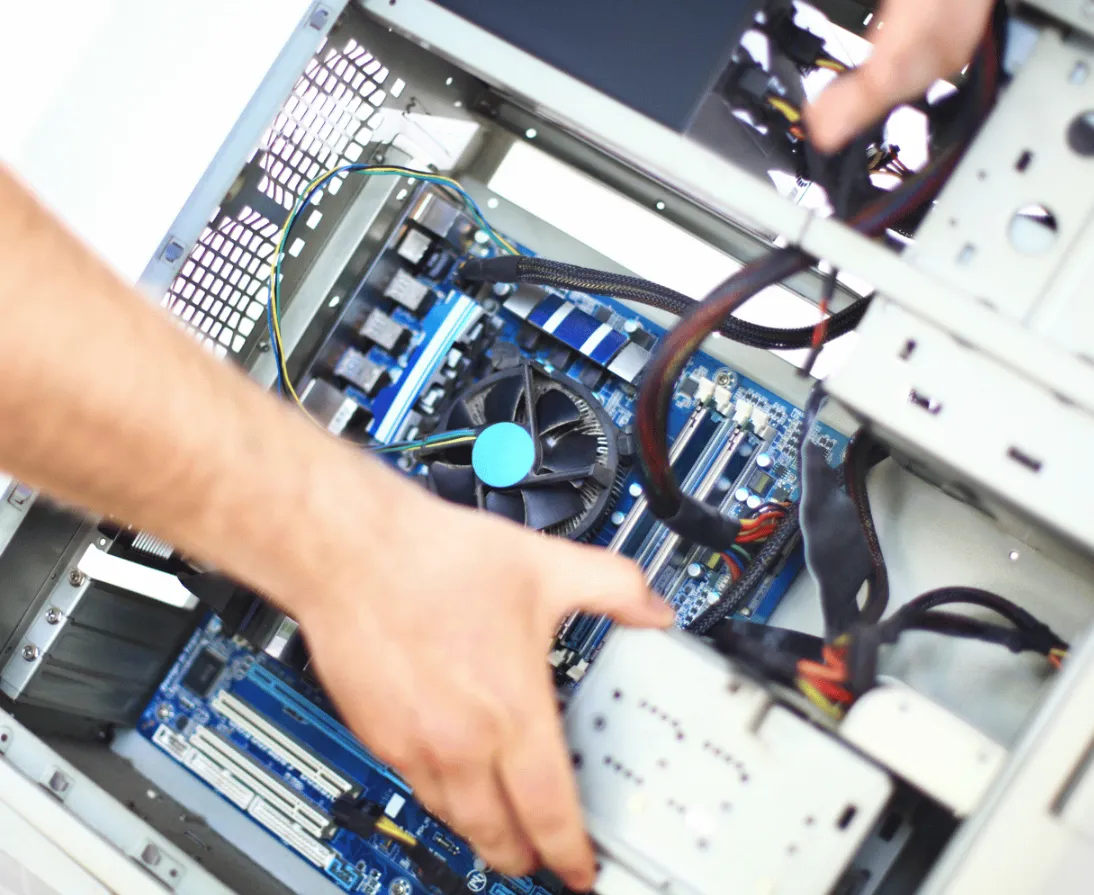
In today’s fast-paced world, your computer is the center of your digital life. Whether it’s for work, gaming, or creativity, it plays a crucial role in your daily tasks. However, like any high-performance machine, a PC needs regular upkeep to keep running smoothly. Without proper maintenance, you might face slower performance, unexpected crashes, and even hardware failures that can shorten your PC’s lifespan.
In this blog, we’ll cover the top 5 maintenance tips every PC owner should know. These easy practices will help you enhance your computer’s speed, improve its health, and extend its lifespan.
Why Regular PC Maintenance Is Crucial
Think of your PC as a high-performance car—it needs regular care to keep running smoothly. Maintaining your computer ensures it performs efficiently and lasts longer, saving you from costly repairs and frustrating downtime.
Regular maintenance boosts your computer’s performance and keeps it ready for demanding tasks, whether it’s a game, creative project, or productivity work. Just like tuning up a car, a little maintenance goes a long way in preventing major issues like software bugs, hardware failures, or security risks.
How to Tell If Your PC Needs Attention
Before diving into the maintenance tips, let’s look at some signs that indicate your PC might need some TLC:
- Slower Performance: If your computer is sluggish and takes longer to boot or open apps, it could be a sign that it needs cleaning or software optimization.
- Overheating: Excessive heat can lead to performance throttling or system shutdowns. If your PC gets unusually hot or your fans are running constantly, it’s time to check the cooling system.
- Frequent Crashes: Random shutdowns or the “Blue Screen of Death” are clear signs of underlying issues that need addressing.
Now that you know why maintenance matters and how to spot the signs, here are the five essential tips to keep your PC in top shape.
1. Keep Software Up-to-Date
One of the easiest ways to improve your PC’s performance is by keeping your software up to date. Updates aren’t just for adding new features—they also fix security vulnerabilities, enhance system stability, and improve performance. Make sure your operating system, drivers, and applications are all updated regularly.
- Automate Updates: Set your system to update automatically to ensure you don’t miss important patches.
- Check for Updates Manually: Make it a habit to manually check for updates, especially for critical software like your antivirus or graphics drivers.
2. Clean Your Hardware Regularly
Over time, dust and debris can accumulate inside your PC and affect its performance. Dust can block airflow, which may lead to overheating and inefficient cooling. Cleaning your PC is an essential part of maintaining its health.
- Use Compressed Air: Blow out dust from vents, fans, and internal components using compressed air. Always power down and unplug your PC before cleaning.
- Laptop Cleaning: If you’re using a laptop, make sure to clear the air intake and exhaust ports. This helps prevent overheating and maintains cooling efficiency.
3. Optimize Your Storage
A cluttered storage drive can slow down your PC. Unnecessary files and programs take up valuable space and impact system performance. Regularly optimizing your storage can significantly speed up your PC.
- Uninstall Unused Apps: Remove programs you no longer use to free up space.
- Use Disk Cleanup Tools: Use built-in utilities like the Disk Cleanup tool on Windows to remove temporary files, system files, and other unnecessary data.
- Consider External Storage: Store large files or backups on external drives or cloud storage to keep your main storage drive lean and fast.
4. Monitor Your PC’s Temperature
Overheating can cause your system to slow down or shut down unexpectedly. Monitoring the temperature of your PC is crucial to ensure it’s running within safe limits.
- Use Temperature Monitoring Software: Tools like HWMonitor or Core Temp can give you real-time data on your PC’s temperature.
- Improve Airflow: Ensure your PC case has adequate ventilation and airflow. If your system runs hot frequently, consider adding more fans or upgrading your cooling solution.
5. Regularly Check for Malware and Viruses
Malware and viruses can compromise your PC’s security, slow down its performance, and cause other major issues. Regularly scan your system for threats to keep it safe and running smoothly.
- Install Antivirus Software: Use reputable antivirus software and keep it updated to protect your PC from malicious software.
- Be Cautious with Downloads: Only download files from trusted sources to avoid infecting your PC with malware.
Advanced Maintenance Tips for Power Users
For those who are comfortable with the basics and want to push their systems to the limit, here are a few advanced maintenance tips:
Customize Performance Settings
You can tweak your operating system settings to optimize performance. For example, adjusting the visual effects in Windows can improve system responsiveness, especially on older PCs. Prioritize critical apps via the Task Manager to ensure they get the resources they need.
Upgrade Hardware for Better Performance
If software tweaks aren’t enough, upgrading your hardware is the next step. Adding more RAM can significantly improve performance, especially if you multitask or work with memory-intensive programs. Upgrading from an HDD to an SSD will drastically improve boot times and loading speeds, making a noticeable difference in your overall experience.
Conclusion
By following these simple yet effective PC maintenance tips, you can keep your system running faster, healthier, and more efficiently for years to come. Regular cleaning, software updates, and proper cooling will help prevent major issues and ensure your computer continues to perform at its best.
Don’t wait for your PC to slow down or break down—adopt these habits today and enjoy a seamless computing experience tomorrow.
