



For any PC gamer, maintaining your hardware is a crucial part of ensuring an optimal gaming experience. The graphics card (GPU) is one of the most important components in your rig, responsible for delivering the stunning visuals in games. But does cleaning your GPU actually make a difference in performance? Let’s take a closer look at this common question.
The Problem with Dust
One of the main issues that affect PC components, including your graphics card, is dust. Dust naturally accumulates over time inside your gaming rig, settling on various parts, including the GPU. When too much dust builds up, it can restrict airflow, which leads to higher temperatures. Increased temperatures can negatively affect your system’s performance, much like trying to run a race in overly restrictive clothing—it simply doesn’t work as efficiently.
Does Cleaning Actually Help?
Yes, cleaning your graphics card can improve its performance. Dust can obstruct your GPU’s ability to cool itself effectively, which can cause it to throttle performance to prevent overheating. By cleaning the dust off, you restore the cooling efficiency of your GPU, allowing it to run at its best.
Here’s how cleaning your GPU can make a difference:
- Better Heat Management: Dust acts as an insulator, trapping heat around the GPU. Cleaning it helps improve heat dissipation, allowing your GPU to operate at a safer and more efficient temperature.
- Consistent Boost Performance: Many modern GPUs are designed to automatically boost their clock speeds when conditions allow. However, if the GPU gets too hot, it may throttle back to prevent damage. Regular cleaning ensures these boost clocks can stay at optimal levels for maximum performance.
- Extended Lifespan: Overheating can shorten the life of any electronic device, including your GPU. Keeping your graphics card clean and cool helps ensure it lasts longer, much like regular maintenance prolongs the life of a car.
How to Clean Your GPU
Now that we know cleaning can help, let’s go over the steps to safely clean your graphics card. Always remember that if you’re not comfortable handling internal components of your PC, it’s a good idea to seek professional help.
What You’ll Need:
- Compressed Air: The best tool for blowing dust out of tight spots without damaging your hardware.
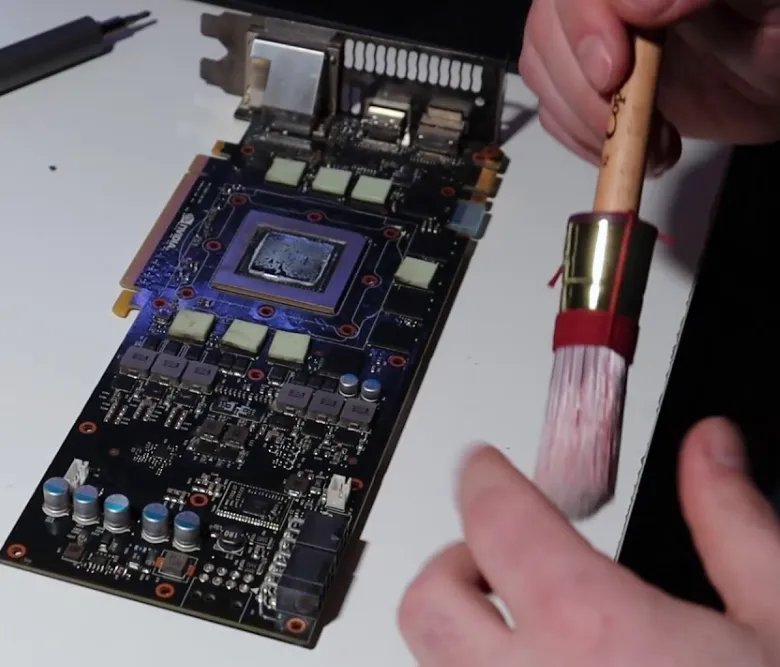
- Soft Brush: A small, soft-bristled brush will help you gently sweep away dust from hard-to-reach areas.
- Isopropyl Alcohol: Useful for cleaning stubborn spots when combined with a microfiber cloth.
Cleaning Steps:
- Turn Off and Unplug Your PC: Always power down and disconnect your PC before starting any cleaning procedure.
- Open the PC Case: Carefully remove the side panel of your PC case to access the internal components.
- Remove the GPU: Unscrew the GPU from the PCIe slot and disconnect any power cables connected to it.
- Blow Away Dust: Use compressed air to blow away any loose dust. Hold the fans in place while doing this to prevent them from spinning.
- Brush Gently: Use a soft brush to gently remove any remaining dust from crevices that the compressed air might have missed.
- Wipe Down: For any stubborn dirt, lightly dampen a microfiber cloth with isopropyl alcohol and carefully clean the affected areas.
- Reassemble Your PC: Once the GPU is clean and dry, carefully reinstall it into the PCIe slot and reconnect the power cables. Close up the case.
- Power Up and Monitor: Start your PC and check the GPU temperatures to ensure that your cleaning efforts have resulted in better cooling and performance.
By following these steps, you can help keep your graphics card in top shape and maintain smooth performance during your gaming sessions.
