



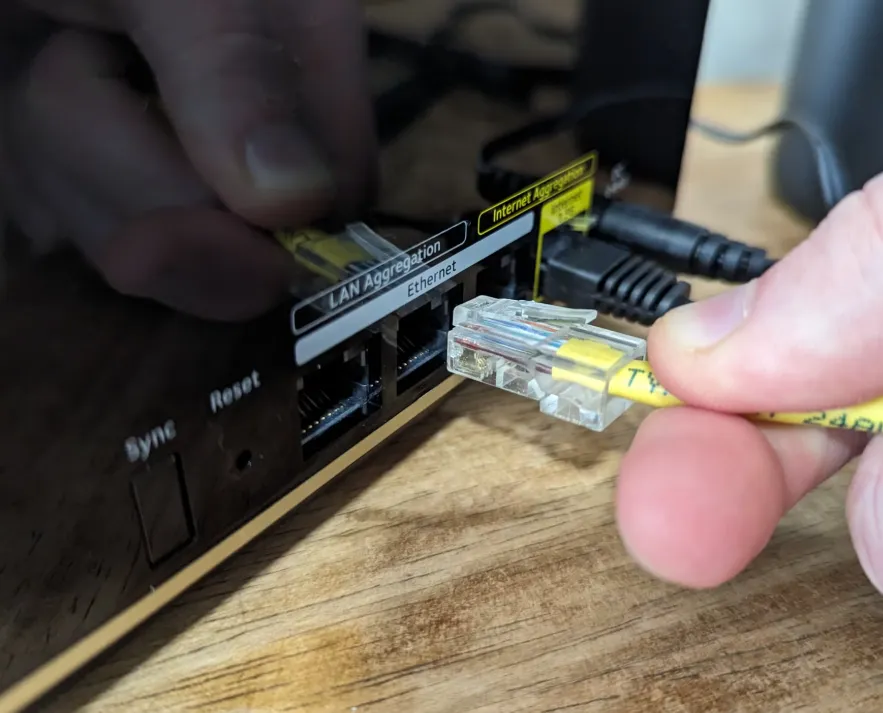
A reliable wired connection is one of the best ways to ensure fast and stable Internet performance. Yet even the most durable Ethernet cables can run into problems over time. From worn-out connectors to internal wiring faults, these issues can cause slow speeds, unstable connections, or complete network failure. If you depend on wired connectivity at home or in the office, knowing how to diagnose and fix Ethernet cable problems can save you time and frustration.
This guide walks you through the most common symptoms, how to check your cables step-by-step, and what to do when repairs are needed.
Recognizing the Signs of a Faulty Ethernet Cable
Ethernet issues aren’t always obvious. Here are the most common warning signs:
- Slow performance: Data transfer speeds drop unexpectedly.
- No connection: Devices fail to detect a wired network.
- Intermittent link: The connection cuts in and out.
- Error alerts: Messages like “Network cable unplugged” appear on your screen.
Spotting these symptoms early can help you isolate the cause quickly.
Step 1: Visually Inspect the Cable
Start by checking the physical condition of the cable.
Things to look for:
- Visible cuts or exposed wiring: Even small breaks can disrupt the signal.
- Damaged RJ45 connectors: Cracked, bent, or loose plugs often cause connection failures.
- Tight bends or kinks: Sharp bends can damage internal wiring.
- General wear: Old cables may have degraded insulation or loose shielding.
If anything looks questionable, the cable may be compromised.
Step 2: Test the Connection with Simple Swaps
Before assuming the cable is dead, try a few quick tests:
Try a different port:
Move the Ethernet cable to another port on your router or switch.
If it works, the original port—not the cable—may be faulty.
Test with another device:
Connect the cable to a different computer or console.
If the issue follows the cable, it’s likely the source of the problem.
Swap the cable:
Use a known working cable in the same setup.
If the second cable works, the original one is defective.
These checks rule out router or device-related issues.
Step 3: Ensure the Connectors Are Secure
A loose plug is a surprisingly common reason for connection drops.
Tips:
- Push the connector firmly into the port.
- Listen for the click, which indicates the plug is locked in place.
- Tug gently to confirm it’s secure.
A loose fit usually means the connector or port is worn or damaged.
Step 4: Use a Cable Tester for Accurate Diagnosis
A simple cable tester can reveal internal wiring problems that aren’t visible from the outside.
How to use it:
- Plug one end of the cable into the tester’s main unit.
- Plug the other end into the remote module.
- Power on the tester.
- Watch the indicator lights—any mismatch or failure signals a wiring error.
A tester is especially useful for long or in-wall cables.
Step 5: Rule Out Software or Configuration Issues
Not all Ethernet problems come from the cable itself.
Check the following:
Network settings:
Make sure the Ethernet adapter is enabled in your device’s settings.
Driver updates:
Update your network adapter drivers through Device Manager or system settings.
Reboot your equipment:
Restart your router, modem, and computer to clear temporary glitches.
If the cable passes hardware tests but the connection is still faulty, software may be the culprit.
Common Ethernet Cable Problems and Solutions
Cable not recognized
Likely cause: Damaged cable or connector
Fix: Replace the cable or re-crimp the connector.
Slow speed or lag
Likely cause: Low-quality or outdated cable (e.g., Cat5)
Fix: Upgrade to Cat6 or Cat7 for better performance.
Random disconnections
Likely cause: Bent cable or worn-out connector
Fix: Replace the cable, avoid tight bends, and keep it away from power sources.
Incorrect wiring
Likely cause: Faulty or poorly terminated RJ45 ends
Fix: Rewire using proper T568A or T568B standards.
How to Repair an Ethernet Cable
If replacing the cable isn’t an option, targeted repairs may help.
Fixing a damaged connector:
- Cut off the faulty connector cleanly.
- Strip the cable jacket to expose the inner wires.
- Arrange the wires in the correct order (T568A or T568B).
- Insert them into a new RJ45 plug.
- Use a crimping tool to secure the connector.
Repairing a damaged section:
- Cut out the damaged portion.
- Use a coupler or splicing technique to reconnect both ends.
- Test the cable again with a cable tester.
Repairs work best for temporary fixes or non-critical cables.
Preventing Future Ethernet Cable Failures
Good habits go a long way toward preventing cable problems:
- Cable management: Keep cables organized and avoid tight bends.
- Protect from foot traffic: Don’t run cables across walkways.
- Avoid interference: Keep Ethernet cables away from power cords.
- Regular checks: Inspect cables periodically, especially older ones.
- Upgrade as needed: Higher-category cables provide better durability and performance.
When to Call in a Professional
If none of your tests solve the issue—or if the cable is inside a wall, ceiling, or hard-to-reach area—it’s best to get help from a technician. They can check network hardware, identify hidden interference, or replace in-wall cabling safely.
Conclusion
Ethernet cable issues can be frustrating, but most problems are easy to diagnose and fix with a structured approach. Start with a visual inspection, test the cable on different devices, check the connectors, and use a cable tester if you have one. With proper care and timely repairs or replacements, you can maintain a strong and stable wired network connection for years to come.
