



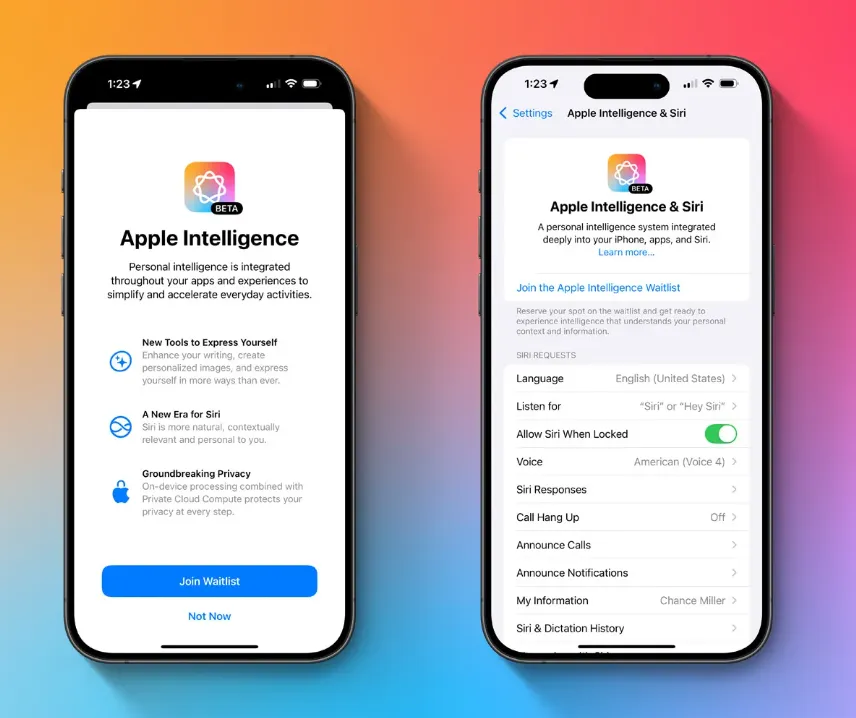
Apple Intelligence is the tech giant’s latest AI initiative, but it’s not for everyone. If you prefer a more traditional device experience without AI-driven enhancements, here’s how to disable Apple Intelligence on your iPhone, iPad, or Mac.
Why You Might Want to Turn Off Apple Intelligence
Apple Intelligence, a feature introduced in iOS 18.3, is now integrated into both iOS and macOS by default. While it offers new AI-powered functionalities, not all users are on board with this change. Some people may want to disable it due to concerns about performance, privacy, or simply because they prefer to wait until the feature matures.
AI tools require system resources, which can impact performance, especially on older Apple devices. For users who don’t require AI assistance regularly, like generating text or summarizing content, keeping it running constantly may not seem worth it. Additionally, despite Apple’s strong focus on privacy, some users may not feel comfortable with their data being processed by AI features.
Regardless of your reasons, turning off Apple Intelligence is simple.
How to Disable Apple Intelligence
Disabling Apple Intelligence can be done through the Settings app on iOS and the System Settings on macOS. Here’s how:
On iOS:
- Open the Settings app.
- Scroll down and tap Apple Intelligence & Siri.
- Toggle off Apple Intelligence.
On macOS:
- Open System Settings.
- Navigate to Apple Intelligence & Siri.
- Turn off Apple Intelligence by flipping the switch.
For those using Siri but who don’t want full AI integration, there is an additional option within the Siri settings to disable Apple Intelligence specifically for that feature. If you’ve enabled the ChatGPT extension within Apple Intelligence, you can also manage those settings separately in the dedicated settings pane.
Additional AI Settings in Apple Apps
Even after disabling Apple Intelligence system-wide, some apps like Messages and Screen Time may still have AI-enabled features. To fully ensure that AI is turned off, it’s worth exploring the settings within these apps individually.
Turning Off Apple Intelligence Reporting
Apple Intelligence also generates activity logs by default. If you want to prevent this data from being recorded, you can disable reporting.
- On iOS and macOS, go to Settings / System Settings → Privacy & Security → Apple Intelligence Report.
- Here, you can turn off logging and adjust the frequency of reports.
Checking Apple Intelligence Storage Usage
AI features take up storage space, typically between 5GB to 8GB, and this usage may grow over time. To check how much space Apple Intelligence is using:
- Go to Settings → General → iPhone Storage → iOS/iPadOS.
- Look for Apple Intelligence in the storage breakdown.
If you disable Apple Intelligence, its storage usage will decrease, although some residual data may remain.
What You Lose When You Turn Off Apple Intelligence
Disabling Apple Intelligence will mean losing access to several useful features, including:
- Summaries: AI-generated overviews of content.
- Writing Tools: AI-powered text assistance.
- Visual Intelligence: Image recognition and enhancement features.
- Image Playground: If installed, this creative tool will be disabled.
- Genmoji: AI-generated emoji features.
As Apple Intelligence continues to evolve, it will be interesting to see how it shapes the Apple ecosystem. For now, the option to disable it provides users with the flexibility to choose how they interact with AI on their devices.
