



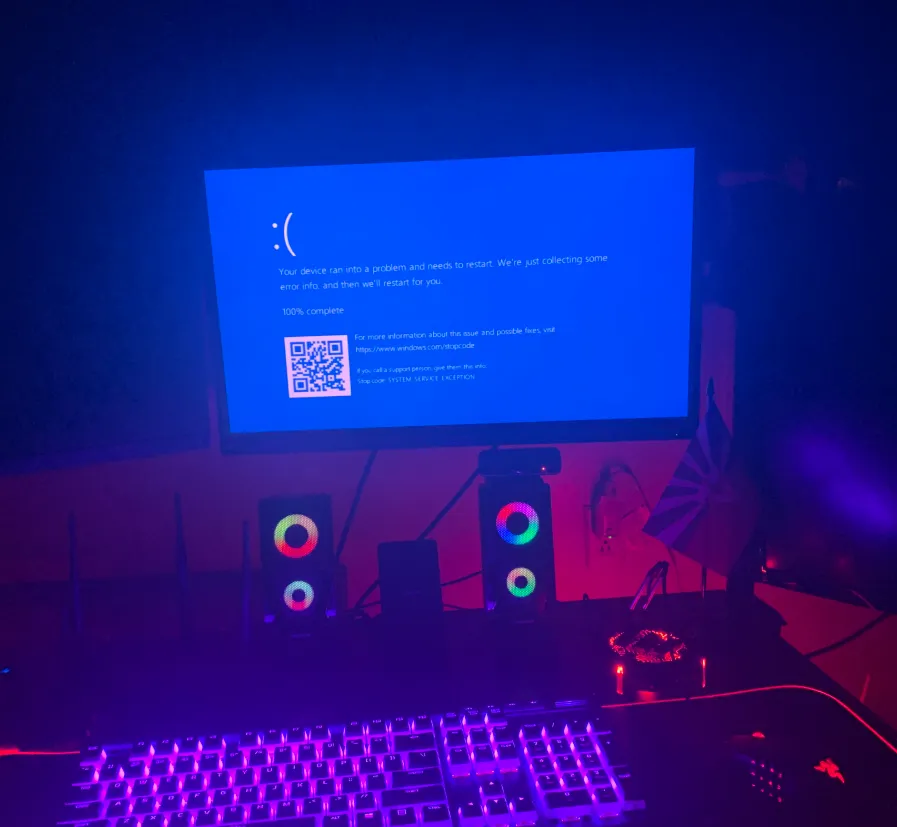
If you’re an avid gamer, you’ve probably experienced the annoying and sometimes worrying sight of a blue screen of death (BSOD) during an intense gaming session. This sudden crash can completely disrupt your experience, leaving you frustrated and unsure of what went wrong. In this blog, we’ll dive into the common reasons why your gaming PC might be blue screening while you’re playing and offer practical solutions to help fix the issue.
1. Insufficient Power Supply
A common cause for blue screens is an inadequate power supply. Your PC needs enough power to run the various hardware components, especially during demanding games. If your power supply unit (PSU) doesn’t provide enough wattage, it can cause your system to crash. Make sure your PSU is rated high enough to handle your gaming rig’s requirements. Upgrading to a more powerful PSU could solve this issue.
2. Overheating
Overheating is another frequent culprit behind system crashes. High temperatures, especially in the CPU or GPU, can lead to instability and force a shutdown to protect your hardware. Check the temperature of your components regularly and clean your PC to prevent dust buildup. You might also need to invest in better cooling solutions, like adding extra fans or upgrading your CPU cooler.
3. Outdated or Corrupt Drivers
Old or corrupted drivers can create compatibility issues that may lead to blue screens during gameplay. Always keep your drivers up to date, particularly for your graphics card, sound card, and motherboard. You can usually find the latest updates on the manufacturers’ websites. Regular driver updates help ensure your system runs smoothly and reduces the chance of crashes.
4. RAM Issues
Problems with your computer’s memory can also trigger blue screens. Faulty or incompatible RAM modules can cause crashes, especially in resource-intensive games. Run a memory diagnostic tool to check for any issues with your RAM, and if necessary, consider replacing or upgrading it for better performance.
5. Graphics Card Problems
Your graphics card is often at the center of gaming-related crashes. A poorly seated GPU or outdated drivers can cause instability. Make sure the GPU is securely placed in the PCIe slot and that its drivers are current. If the issue persists, try reseating the card or even upgrading to a more powerful GPU.
6. Software Conflicts
Conflicts between running applications or incompatible software can result in system crashes. Ensure that unnecessary programs are closed during gaming sessions to free up resources. Additionally, check that both your games and drivers are updated. Running a clean boot can also help identify any software conflicts that could be causing instability.
7. Overclocking Instability
If you’ve overclocked your CPU or GPU to boost performance, this can sometimes lead to instability. Overclocking can push your components beyond their limits, causing crashes. If this is the case, reset your components to their default settings and gradually overclock them again while performing stress tests to find a stable configuration.
8. Malware or Viruses
Malware and viruses can wreak havoc on your gaming PC, causing unexpected crashes. Run a full antivirus scan using reliable software to check for any infections. If any threats are detected, remove them immediately to restore stability to your system.
9. Lack of Disk Space
When your hard drive or SSD is low on space, it can slow down your system and even lead to crashes. Make sure there’s plenty of free space on your storage drive. If you’re running out of room, consider upgrading to a larger drive or moving some of your files to an external storage device.
10. Hardware Failures
Finally, if none of the above solutions resolve the problem, you may be dealing with a hardware failure. Loose connections or damaged components could be the root cause of your blue screens. Check all hardware connections and, if necessary, consult a professional technician to help diagnose and repair any faulty parts.
Experiencing blue screens during gaming can be frustrating, but by following these troubleshooting steps, you can address the underlying issues. From power supply and cooling to driver updates, memory checks, and hardware maintenance, there are many ways to reduce the likelihood of crashes. Keep your system updated, clean, and properly maintained to ensure a smooth gaming experience with minimal interruptions.
